Email Throttling vs Deferral vs Rejection: A Guide to SMTP Bounces
Estimated reading time: 11 minutes
Your email campaign goes out, but some messages arrive hours late while others bounce immediately. What happened?
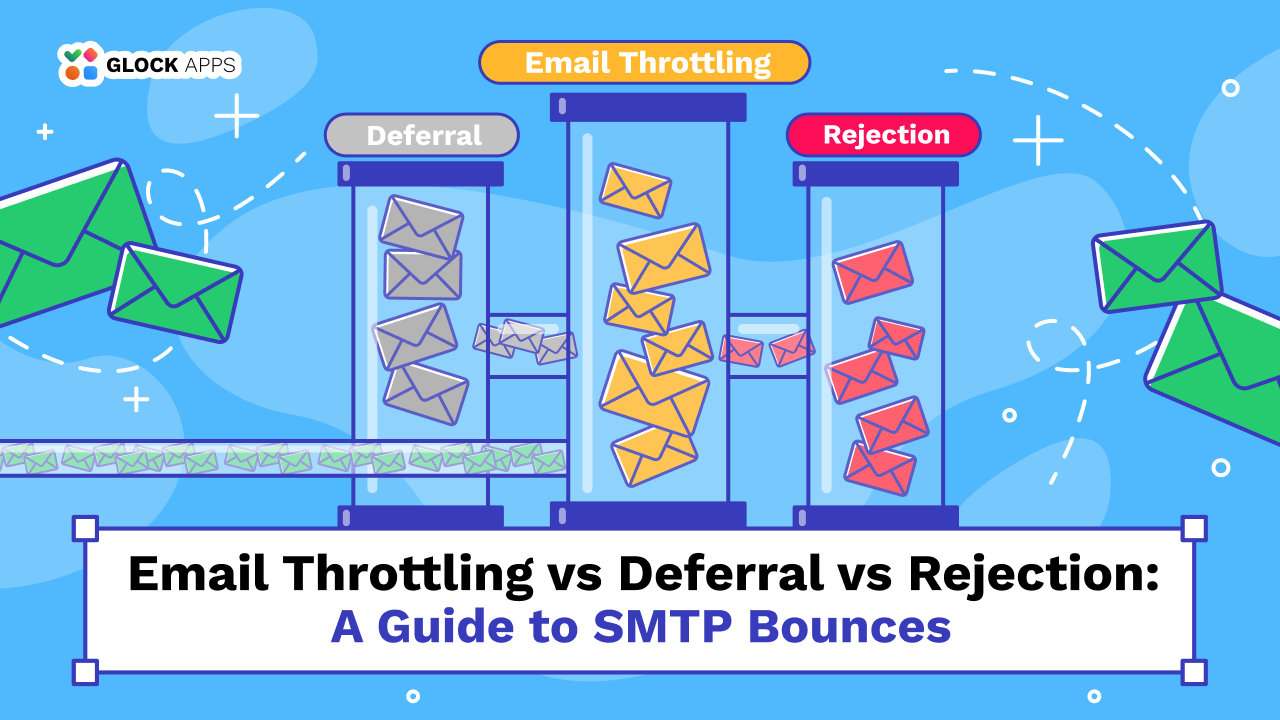
Email throttling, deferral, and rejection can all interrupt delivery, but they mean different things. Some indicate a temporary slowdown, while others mean the receiving server has permanently refused the message.
Understanding the difference helps you read SMTP errors correctly, fix the actual problem, and prevent unnecessary damage to your sender reputation.
Key Takeaways
- Throttling means a receiving server is limiting how quickly it accepts your email.
- Deferral is a temporary delivery failure, usually represented by a 4xx SMTP response.
- Rejection is a permanent failure, typically represented by a 5xx SMTP response.
- Temporary failures should usually be retried with appropriate delays; permanent failures normally require fixing the underlying problem first.
- Frequent throttling, deferrals, and rejections can point to problems with sending volume, reputation, authentication, list quality, or infrastructure.
Throttling vs Deferral vs Rejection: What Is the Difference?
Although the terms are sometimes used interchangeably, they describe different aspects of email delivery.
| Issue | What It Means | Typical SMTP Response | Should You Retry? |
| Throttling | The receiver limits how quickly it accepts your messages | Often 4xx | Yes, but more slowly |
| Deferral | Delivery has been temporarily postponed | 4xx | Usually yes |
| Rejection | The receiver permanently refuses the message | 5xx | Usually no |
The most important distinction is between temporary and permanent SMTP failures.
According to SMTP standards, a 4xx reply indicates a temporary negative response where the sending server should normally try again. A 5xx response means the requested action was not completed and the exact request should not simply be repeated unchanged.
Throttling is slightly different because it describes what the receiving server is doing: controlling your sending rate. In practice, throttling frequently appears to the sender as a series of temporary 4xx deferrals.
What Is Email Throttling?
Email throttling happens when a receiving mail server deliberately limits how quickly it accepts messages from a sender.
Imagine sending several thousand messages to Gmail within a very short period. Instead of accepting every message immediately, Gmail may start temporarily slowing or limiting your traffic.
Your sending platform then has to queue the affected emails and attempt delivery again later.
Throttling is commonly associated with:
- sudden increases in email volume;
- new domains or IP addresses without an established sending history;
- poor or declining sender reputation;
- high spam complaint rates;
- large numbers of unsuccessful deliveries;
- inconsistent sending patterns;
- unusual traffic from a particular IP or domain.
Google specifically advises senders to avoid sudden volume spikes and maintain consistent sending volumes. If messages start being deferred, Google recommends reducing sending volume until SMTP error rates decrease and then increasing it gradually.
Is Email Throttling a Bounce?
Not necessarily.
Throttling typically creates a temporary delivery problem rather than an immediate permanent bounce. Your mail server or ESP may keep the message in its queue and retry it.
However, throttling should not be ignored.
Google describes temporary failures as a throttling mechanism designed to slow sending rates and warns that failing to reduce your sending rate can eventually lead to permanent failures.
If retries continue failing until your ESP’s retry window expires, the message may ultimately be returned as undeliverable.
How to Fix Email Throttling
If a mailbox provider is telling you to send less aggressively, increasing the rate normally makes the situation worse.
Try the following:
- Reduce your sending rate. Pause or decrease traffic to the provider returning temporary errors.
- Avoid sudden volume spikes. Large jumps from your normal sending volume can look suspicious even when your list is legitimate.
- Ramp volume gradually. New sending domains and IPs need time to establish a consistent history.
- Segment engaged recipients first. Sending to recipients who regularly interact with your emails can help establish healthier sending signals.
- Review authentication. Make sure SPF, DKIM, and DMARC are correctly configured.
- Check your sender reputation and bounce patterns. Look for problems isolated to a particular IP, domain, or mailbox provider.
- Use proper retry logic. Temporary failures should not trigger immediate repeated delivery attempts. Exponential backoff gives the receiving server progressively more time between attempts.
Before increasing campaign volume, you can also use GlockApps to run inbox placement and deliverability tests across mailbox providers. This can help identify authentication, reputation, spam-filter, and placement problems before they affect a larger campaign.
What Is Email Deferral?
An email deferral occurs when the receiving mail server temporarily refuses to accept a message but leaves open the possibility of accepting it later.
SMTP deferrals are commonly associated with 4xx response codes, including codes beginning with 421 or 451.
Yahoo, for example, says its 421 and 451 errors represent temporary delivery problems. Reasons can include unusual traffic patterns, complaints, temporary authentication problems, busy mail servers, or other suspicious sending behavior. Yahoo explicitly allows senders experiencing these errors to retry later.
What Causes Email Deferrals?
Common reasons include:
High sending volume: You may be attempting to deliver more messages than the receiving system currently wants to accept.
Temporary server problems: The recipient’s mail server may be overloaded, unavailable, or undergoing maintenance.
Sender reputation issues: The mailbox provider may temporarily limit traffic while evaluating your domain or IP.
Authentication problems: Temporary DNS or authentication lookup failures can prevent the recipient server from verifying SPF, DKIM, or other information.
Suspicious sending patterns: Rapid changes in volume, unusual IP behavior, or a sudden increase in complaints may trigger temporary restrictions.
Mailbox provider policies: Each provider applies its own rate limits and anti-abuse systems.
Deferral vs Soft Bounce
The terms are closely related but aren’t always identical.
Many email platforms categorize temporary delivery failures as soft bounces. A deferral is the SMTP-level temporary response that can produce this type of delivery status.
Your ESP may continue retrying the email automatically.
If the problem resolves, the message gets delivered. If it continues for too long, the ESP can eventually stop retrying and classify the message as failed.
How to Fix Email Deferrals
First, read the complete SMTP error message rather than looking only at the three-digit code.
Enhanced status codes and accompanying text often explain whether the problem involves:
- rate limits;
- reputation;
- authentication;
- DNS;
- server availability;
- spam policies;
- sending volume.
If the error points to rate limiting, reduce traffic and retry later.
Google recommends stopping or slowing sends after delivery deferrals rather than immediately increasing volume. Its current guidance also recommends pacing email consistently instead of generating unpredictable traffic spikes.
If deferrals continue even at reduced volume, investigate your sender reputation, authentication, infrastructure, list quality, and provider-specific error messages.
What Is Email Rejection?
An email rejection occurs when the recipient server permanently refuses to accept the message.
Unlike a deferral, the receiving system isn’t asking you to try again a few minutes later.
It is telling you that delivery failed.
Permanent SMTP failures normally use 5xx response codes, although you should always read the entire response because the same base code can appear with different enhanced status codes and explanations.
Typical examples include:
- 550
- 553
- 554
Yahoo describes 553 and 554 responses as permanent errors and advises senders not to retry messages that receive a 5xx response without addressing the underlying issue.
Why Do Emails Get Rejected?
There is no single cause.
1. Invalid Recipient Address.
The mailbox may not exist anymore, or the address could contain a typo.
Continuing to repeatedly send to clearly invalid recipients can contribute to poor list-quality signals.
2. Email Authentication Failure.
The receiving server may reject mail that fails authentication or does not meet its sender requirements.
SPF, DKIM, and DMARC are particularly important for protecting domains from spoofing and helping receiving systems verify legitimate senders.
3. Poor Sender Reputation.
A sending IP or domain associated with unwanted email, complaints, or abusive behavior can face stricter filtering or outright rejection.
4. Policy Violations.
Mailbox providers maintain their own requirements for incoming mail.
For example, Gmail’s current sender requirements can result in temporary or permanent failures when certain authentication, DNS, TLS, message-formatting, or alignment requirements aren’t satisfied.
5. Blocklisted IP Addresses.
Some receiving systems may reject email when the sending IP appears on a blocklist they use for filtering.
6. Malformed Messages.
Incorrect message headers, MIME formatting, or other RFC compliance problems may also cause rejection.
Yahoo lists malformed headers and other RFC compliance failures among conditions that can prevent mail from being accepted.
Understanding 4xx vs 5xx SMTP Errors
You don’t need to memorize every SMTP status code to troubleshoot email delivery. Start with the first digit.
4xx: Temporary Failure
A code beginning with 4 generally means:
The message wasn’t accepted now, but delivery may succeed later.
Examples include:
- 421 — service temporarily unavailable or connection being closed;
- 450 — requested mailbox action temporarily unavailable;
- 451 — local processing error;
- 452 — insufficient system storage or another temporary resource problem.
The appropriate response is normally to pause and retry according to your server or ESP’s retry strategy.
5xx: Permanent Failure
A code beginning with 5 generally means:
The message was not accepted, and repeating the same request unchanged isn’t appropriate.
Examples include:
- 550 — requested action not taken/mailbox unavailable;
- 551 — user not local;
- 552 — requested mail action aborted due to storage allocation;
- 553 — mailbox name or related parameters not allowed;
- 554 — transaction failed.
Remember that the three-digit code alone doesn’t always identify the exact cause.
Always analyze the full SMTP response, including the enhanced status code and accompanying explanation.
How to Diagnose an Email Bounce
When delivery problems start appearing, resist the temptation to immediately change your email content or clean your entire database.
First, determine what type of failure you’re actually dealing with.
Step 1: Check the SMTP Response.
Look at your ESP’s delivery logs or bounce reports.
Identify:
- SMTP response code;
- enhanced status code;
- receiving mailbox provider;
- timestamp;
- affected sending IP;
- affected domain;
- full error message.
Step 2: Determine Whether It Is Temporary or Permanent.
If it’s a 4xx error, investigate throttling, reputation, volume, server availability, authentication, and other temporary causes.
If it’s a 5xx error, investigate the specific permanent reason before attempting another send.
Step 3: Look for Patterns.
One failed message doesn’t necessarily indicate a serious deliverability problem.
Hundreds of similar failures do.
Check whether errors are concentrated around:
- Gmail recipients;
- Yahoo recipients;
- a specific campaign;
- one sending IP;
- one domain;
- recently imported contacts;
- sudden volume increases.
Patterns reveal much more than isolated bounces.
Step 4: Test Your Deliverability.
Don’t rely entirely on bounce statistics. An email can be technically accepted by the receiving server and still end up in spam.
Running regular GlockApps deliverability tests can give you additional visibility into inbox versus spam placement, authentication, sending infrastructure, and filtering issues. Combining placement testing with your SMTP and bounce data gives you a more complete view of what happens after you hit Send.
How to Reduce Throttling, Deferrals, and Rejections
There is no single fix for every bounce, but strong sending practices reduce the likelihood of all three problems.
Keep Your Sending Volume Consistent
Mailbox providers build a history around your sending behavior. Avoid going from a few hundred messages per day to tens of thousands overnight.
When increasing volume, do it gradually.
Maintain a Healthy Email List
Regularly remove:
- invalid addresses;
- repeated hard bounces;
- users who have unsubscribed;
- contacts who should no longer receive your mail.
Never keep repeatedly sending to recipients that have produced clear permanent address failures.
Authenticate Your Email
Configure:
- SPF;
- DKIM;
- DMARC.
Authentication isn’t only about preventing spoofing. It is now part of the baseline requirements used by major mailbox providers to evaluate bulk email.
Monitor Spam Complaints
If recipients repeatedly mark your messages as spam, mailbox providers have a strong reason to distrust future traffic.
Send relevant content to people who actually asked to receive it and make unsubscribing straightforward.
Avoid Unpredictable Traffic Spikes
Spread large campaigns over a reasonable period instead of pushing every email through as quickly as possible.
This becomes particularly important when your domain or IP does not yet have a strong sending history.
Respect Temporary Errors
A 4xx response isn’t an invitation to reconnect hundreds of times immediately.
Use appropriate queue management and retry intervals. Gmail explicitly recommends exponential backoff for temporary failures.
Read Provider-Specific Error Messages
Don’t treat every 550, 421, or 451 as the same problem.
Mailbox providers frequently include additional information explaining why the message was delayed or rejected.
That explanation should guide your troubleshooting.
Conclusion
Throttling, deferral, and rejection all interfere with email delivery, but they shouldn’t be treated as the same problem.
Throttling means a receiving server is controlling your sending rate. Deferral means the message has been temporarily refused and can usually be retried. Rejection means the server has permanently refused the delivery attempt.
The fastest way to fix email bounces is therefore not simply to resend. Read the complete SMTP response, determine whether the problem is temporary or permanent, and then address its actual cause.
Consistent sending patterns, proper authentication, healthy lists, strong sender reputation, and ongoing deliverability monitoring can dramatically reduce the chances of temporary delivery issues turning into permanent failures.
FAQ
Throttling is the receiving server’s decision to limit the rate at which it accepts your email. A deferral is a temporary SMTP delivery outcome. In practice, throttling commonly results in 4xx deferral responses that tell your sending system to slow down and retry later.
Not necessarily. A deferred message has been temporarily refused, but your mail server or ESP will usually attempt delivery again. Some platforms classify temporary delivery failures as soft bounces. If retries continue to fail, the message may eventually be marked undeliverable.
Yes. Occasional throttling can simply reflect temporary rate controls, but frequent or prolonged throttling can indicate that your sending volume, reputation, or behavior is causing concern. Ignoring temporary failure signals and continuing at the same rate may eventually lead to permanent delivery failures.
Look for increased delivery times and temporary 4xx SMTP errors, particularly when they appear after volume increases. Your sending logs may also show repeated temporary failures from a particular mailbox provider. If delivery improves after lowering your sending rate, throttling was likely involved.
Related Posts
Email deliverability challenges are not always caused by spam filters or technical errors. In many cases, messages fail to arrive Read more

Organizations face increasingly complex cyber threats. As cyberattacks grow in volume and sophistication, cybersecurity teams must go beyond basic defenses Read more
Sending an email looks almost effortless. You write a message, click Send, and a few seconds later it appears in Read more

If you’ve been in email marketing for more than five minutes, you’ve probably come across the term “email bounce.” Whether Read more