Why Your Emails Land in the Outlook Promotions Folder and What to Do About It

Estimated reading time: 11 minutes
Who but marketers knows how incredibly difficult it is to get promotional emails into the main Outlook inbox? According to GlockApps’ H1 2026 deliverability benchmark report, consumer Outlook’s inbox placement was just 34.67%, which is far behind Gmail’s 62.40% and the lowest of any major free provider we analyzed.
On the business side, the picture is much brighter. Office 365 averaged 73.83% inbox placement in H1 2026, meaning B2B senders are far more likely to reach the Inbox than marketers targeting B2C accounts. Yet getting seen remains a challenge. Even when a campaign passes authentication checks and avoids the Junk Email folder, Microsoft 365 may still tag it with a dreaded Promotions label or route it into a separate Promotions folder.
Why does that happen, and what can senders do about it? The answer depends partly on how Microsoft categorizes bulk email and partly on the recipient organization’s Microsoft 365 settings. This guide explains what senders need to know and what they can influence when it comes to the Outlook Promotions folder.
Key Takeaways
- In Outlook, the Promotions folder is separate, not a tab like in Gmail.
- Microsoft automatically applies the Promotions tag to messages identified as promotional bulk mail, regardless of their BCL score.
- Whether your marketing message will be sent to the Promotions folder depends on the recipient organization’s anti-spam policies.
- Promotions placement doesn’t indicate that you failed domain authentication checks or have problems with your sender reputation.
- The Promotions folder is controlled at the organization level, not by individual users.
- B2B senders and sales teams are directly affected because the Promotions folder applies specifically to Microsoft 365 business accounts, risking losing visibility with enterprise prospects.
- Senders can’t influence Microsoft’s classification or choose the recipient’s folder, but they can watch how messages land in seed mailboxes.
What Is the Promotions Folder in Outlook?
Microsoft Defender for Office 365 manages and protects the Promotions folder in Outlook. It sits right at the top level of a recipient’s mailbox and appears across all Outlook apps and web experiences. When a recipient’s organization enables this feature, Defender automatically routes legitimate promotional emails with a low Bulk Complaint Level (BCL), meaning those below the organization’s configured threshold, into the Promotions folder instead of the main Inbox. Emails from senders that a recipient has specifically allowed still go straight to their Inbox, while spam and bulk messages that meet or exceed the BCL threshold continue to go to Junk or Quarantine.
Microsoft rolled out the feature in 2026, starting with a preview before moving to general availability. As a result, what users see can vary by organization.
The server handling the message may accept it and put it in the mailbox, without displaying it in the main Inbox. If the recipient’s company has enabled the feature, promotional bulk mail may be routed to their Promotions folder instead.
Unlike Gmail, which uses a Promotions tab inside the Inbox, Outlook places Promotions in a separate top-level folder, meaning your email marketing campaigns are less visible to your target audience, especially people who mostly check their main inbox.
It is also important not to confuse a Promotions label and folder placement. Microsoft may classify and label a message as promotional without actually moving it to the Promotions folder, as final routing depends on the organization’s security settings.
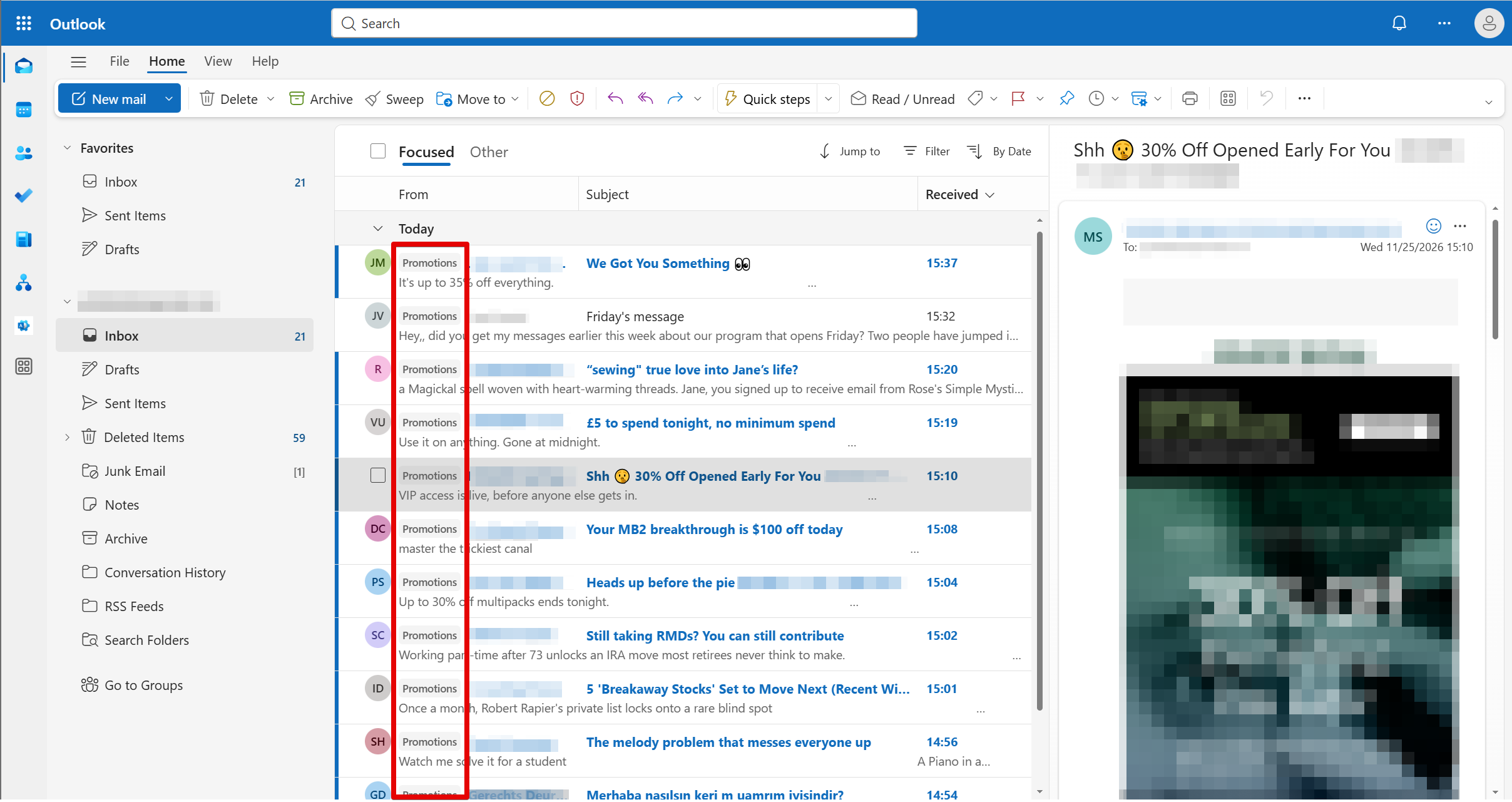
How Is the Promotions Folder Set Up in Outlook?
As a sender, you don’t need to worry about every Outlook subscriber suddenly losing sight of your campaigns. According to Microsoft’s October 2026 documentation, the dedicated Promotions folder isn’t enabled by default in all accounts. Personal Outlook.com mailboxes and consumer Microsoft 365 plans do not include this feature at all, so if you check a personal inbox and can’t find a Promotions folder, that’s why.
For a recipient’s mailbox to automatically sort promotional emails into this folder, three things must be in place:
1. An eligible business license: The recipient must use a commercial Microsoft 365 mailbox covered by Microsoft Defender for Office 365. Consumer accounts (Outlook.com, Hotmail, Live) and standard individual plans do not support it.
2. Admin activation: Individual employees can’t turn this feature on themselves. An IT or security administrator must explicitly enable the “Bulk moves enabled” setting inside the organization’s inbound anti-spam policy in the Microsoft Defender portal.
3. A qualifying incoming email: Once the admin turns the setting on, Microsoft 365 creates the top-level Promotions folder automatically the first time a legitimate promotional email below the BCL threshold arrives.
So, your B2C subscribers on personal Outlook addresses won’t see a Promotions folder at all, and even among B2B recipients, your campaigns will only be routed there if their company has both the right Defender license and the setting enabled.
The Difference Between Promotions, Inbox, and Junk Email
If we are talking about promotions placement, it’s not a deliverability failure. A legitimate marketing email can pass all authentication checks and still be classified as promotional bulk mail.
Junk placement is a different story. If your campaign lands in Junk Email, you should investigate the spam filtering results, authentication setup, sender reputation, and complaint rates.
| Folder | What it means |
| Inbox | The message was delivered directly to the recipient’s main Inbox. |
| Promotions | The message was classified as promotional bulk mail and routed to a separate folder. |
| Junk Email | The message was identified as potential spam, unwanted mail, or exceeded the organization’s BCL threshold. |
Why Do Emails Go to the Outlook Promotions Folder?
Microsoft uses internal and external signals to identify bulk senders and assign incoming bulk messages a Bulk Complaint Level (BCL) from 0 to 9. A higher score means Microsoft sees your sending patterns as more likely to generate user complaints.
However, BCL and Promotions classification work separately. Since July 2026, Microsoft automatically applies the Promotions tag to messages identified as bulk and promotional, regardless of their BCL score. A campaign doesn’t need a high complaint score to get tagged. Promotional bulk mail gets the label at any BCL value.
When a recipient’s organization turns on “Bulk moves enabled” in its anti-spam policy, those tagged emails skip the main Inbox and route straight to the Promotions folder.
Your BCL score still matters because it determines what happens next. Bulk mail that stays below the threshold can go to Promotions, while anything that meets or exceeds the threshold triggers the policy’s spam action. The default threshold is 7 in the default policy, 6 in the Standard preset, and 5 in the Strict preset. The default action is Junk, and the Strict preset quarantines the message instead. So, landing in Promotions is the expected outcome for marketing mail, and a climbing BCL is the real warning sign to watch.
What Can Email Senders Do About Outlook Promotions Placement?
If you’ve wondered how to get rid of the Promotions folder in Outlook, the answer is that you can’t force it to put your campaign in the main Inbox instead of Promotions. What you can do is protect your sender reputation and verify that a Promotions label isn’t masking a deeper deliverability problem.
1. Keep complaints low.
Good list hygiene habits won’t stop Microsoft from recognizing promotional content, nor will they guarantee main Inbox placement, but they protect your reputation and keep your BCL down:
- Email only contacts who explicitly opted in to hear from you.
- Clean invalid addresses and suppress unengaged subscribers.
- Make your unsubscribe link obvious and easy to use.
- Ramp up sending volume gradually rather than causing sudden spikes.
- Monitor spam complaints and changes in engagement.
- Segment your audience so subscribers get content that fits their interests.
2. Verify SPF, DKIM, and DMARC.
Make sure your sending domain is properly authenticated with SPF, DKIM, and DMARC.
Authentication proves your identity as a legitimate sender, though it won’t stop Microsoft from labeling a marketing blast as promotional. Missing or misconfigured authentication records can negatively affect deliverability and increase the risk of Junk placement. If you see an increase in Junk placement, carefully audit your authentication alignment, IP and domain reputation, and blocklist status right away.
3. Test inbox placement across providers.
As you may already know, the email sending platform just reports that your campaign was delivered but doesn’t tell you whether subscribers saw it: in their main Inbox, Promotions, or Junk.
Running inbox placement tests gives you a wide overview across global mailbox providers. With GlockApps, you can send a test campaign to a seed list of 130+ business and individual addresses and see precisely where it lands: Inbox, Spam, Tabs, or Missing. The report also shows spam filter scores, authentication diagnostics, IP/domain reputation checks, and blocklist results.
4. Check email links and content.
Microsoft’s Promotions classification looks beyond message text and layout. But broken elements can trigger spam filters or ruin how your email renders.
Before sending a campaign, check that:
- Every link points to the right destination and uses a trustworthy, active domain.
- Images load properly and carry descriptive alt text.
- Your HTML is clean and renders reliably across Outlook clients.
- You included a clean plain-text version alongside the HTML.
GlockApps spam testing can help identify potential content and HTML issues, check images, links, and evaluate how spam filters respond to your message.
5. Ask subscribers to add you to Safe Senders (though don’t count on it).
In theory, emails from senders whom a recipient has explicitly allowed stay in the main Inbox instead of going to Promotions. In reality, very few people actually take the time to dig into their Outlook settings and add a brand to their Safe Senders list.
Still, you can try to include a polite encouragement in your welcome email asking subscribers to add you to their contacts or Safe Senders, especially for high-value B2B newsletters where readers actively want your updates. It is clear that few people will go for this, but for those who do, your emails bypass Promotions sorting completely. Moving one of your emails from Promotions to the Inbox helps too, since Microsoft says the system learns from that.
6. Separate your transactional and marketing email streams.
If you send to Outlook, you already know how strict Microsoft’s filtering can be. Microsoft Defender is notoriously aggressive at grouping traffic (when you send everything from the same domain and IP), meaning bulk signals and Promotions tagging from your marketing campaigns can easily bleed into your operational emails.
Keep your streams separate, sending transactional messages like account updates, invoices, and alerts from a subdomain and dedicated sending IP. That way, Microsoft’s strict bulk sorting will focus only on your marketing stream, so essential account emails are still more likely to land in the recipient’s main Inbox.
Conclusion
Just because your campaign ended up in the Promotions folder in Outlook doesn’t mean it should be considered a deliverability failure. It simply means that Microsoft has sorted your marketing email into the right bucket for an organization that has promotional filtering enabled.
Instead of worrying about a folder placement you cannot control from the sender’s side, focus on creating relevant emails to people who genuinely want them. Mailbox providers are becoming increasingly strict about separating promotional noise from personal correspondence every year, and marketers should prioritize subscriber trust over striving to land in the main Inbox at any cost.
To evaluate your new campaigns, test them with GlockApps to see how they are delivered across various ISPs and identify the issues that need to be addressed first to improve your overall results.
FAQ
Microsoft identifies bulk messages and automatically applies the Promotions tag to those it considers promotional, regardless of their BCL score. Whether that mail is moved into the Promotions folder depends on whether the recipient’s organization has turned on “Bulk moves enabled” in its Microsoft 365 anti-spam policy.
Placement in the Outlook Promotions folder does not indicate deliverability issues. It means a message isn’t appearing in the recipient’s main Inbox, making it less visible and reducing opportunities for engagement.
Senders can’t directly control Microsoft’s Promotions classification or the recipient organization’s routing settings. Good sending practices and proper authentication support overall deliverability, increasing chances of reaching the main Inbox. Changes can be made only on the receiving end. The recipient organization’s Microsoft 365 IT administrator can disable automatic movement to the Promotions folder through anti-spam policies. To prevent specific trusted senders’ emails from receiving the Promotions tag altogether, the administrator can create a mail flow rule that excludes those senders from the classification.
The Promotions folder is only available on commercial Microsoft 365 accounts covered by Microsoft Defender for Office 365. Personal Outlook.com accounts and standard individual plans do not include it. Even on eligible business accounts, an organization’s IT administrator has to turn on the “Bulk moves enabled” setting before the folder appears and starts sorting mail.
Email senders can’t remove or disable the Promotions folder or control Microsoft’s promotional classification through their email platform or campaign settings. These controls are managed by the recipient’s Microsoft 365 organization.
Microsoft 365 administrators can turn off the “Bulk moves enabled” setting in the relevant anti-spam policy. This stops promotional bulk mail from being moved to the Promotions folder automatically. However, the folder may remain in users’ mailboxes, and Microsoft may still apply the Promotions tag. Administrators can also use mail flow rules to prevent messages from specific senders or recipients from receiving the Promotions tag.
Use a deliverability testing tool such as GlockApps. A seed test shows your Inbox, Spam, Tabs, or Missing placement across supported mailbox providers, including Outlook, and provides detailed diagnostics of your domain authentication, spam filtering, and blocklisting results.
Related Posts

Being able to send your emails from your email system to the inbox – instead of the junk folder – Read more
Since early November 2026, Outlook.com and Hotmail have been refusing mail from domains that publish no DMARC record, even when Read more
Your email platform says “delivered,” but Outlook subscribers keep finding your campaigns in Junk. Microsoft SNDS can help you investigate Read more
Outlook has a special reputation in the email world, and not always a flattering one. An email that looks clean Read more