How to Send Mass Email in Outlook: A Practical Step-by-Step Guide
Estimated reading time: 8 minutes
Email remains one of the most effective communication channels for announcements, newsletters, internal updates, and client outreach. Yet many people still struggle with how to send mass email in Outlook without creating spammy experiences, exposing recipient addresses, or damaging deliverability.
As someone who knows email systems, sender reputation, and inbox placement well, I can tell you: Outlook is perfectly capable of handling bulk communication, if you use it correctly. In this article, we’ll go through three great methods for mass sending in Outlook: BCC, mail merge, and contact lists.
Key Takeaways
- Outlook can send bulk emails, but it is not a dedicated email marketing platform
- Always protect recipient privacy using BCC or mail merge
- Personalization significantly improves engagement
- Sending limits exist and vary by account type
- Deliverability monitoring is essential for large sends
What Is a Mass Email in Outlook?
A mass email Outlook campaign means sending the same message to multiple recipients at once. This may include:
- Company-wide announcements
- Event invitations
- Product updates
- Press releases
- Bulk notifications
You can do this using three primary methods.
Method 1: Using BCC (Quick & Simple)
This is the fastest way to send the same email to multiple recipients.
Steps:
- Create a new email
- Click on BCC
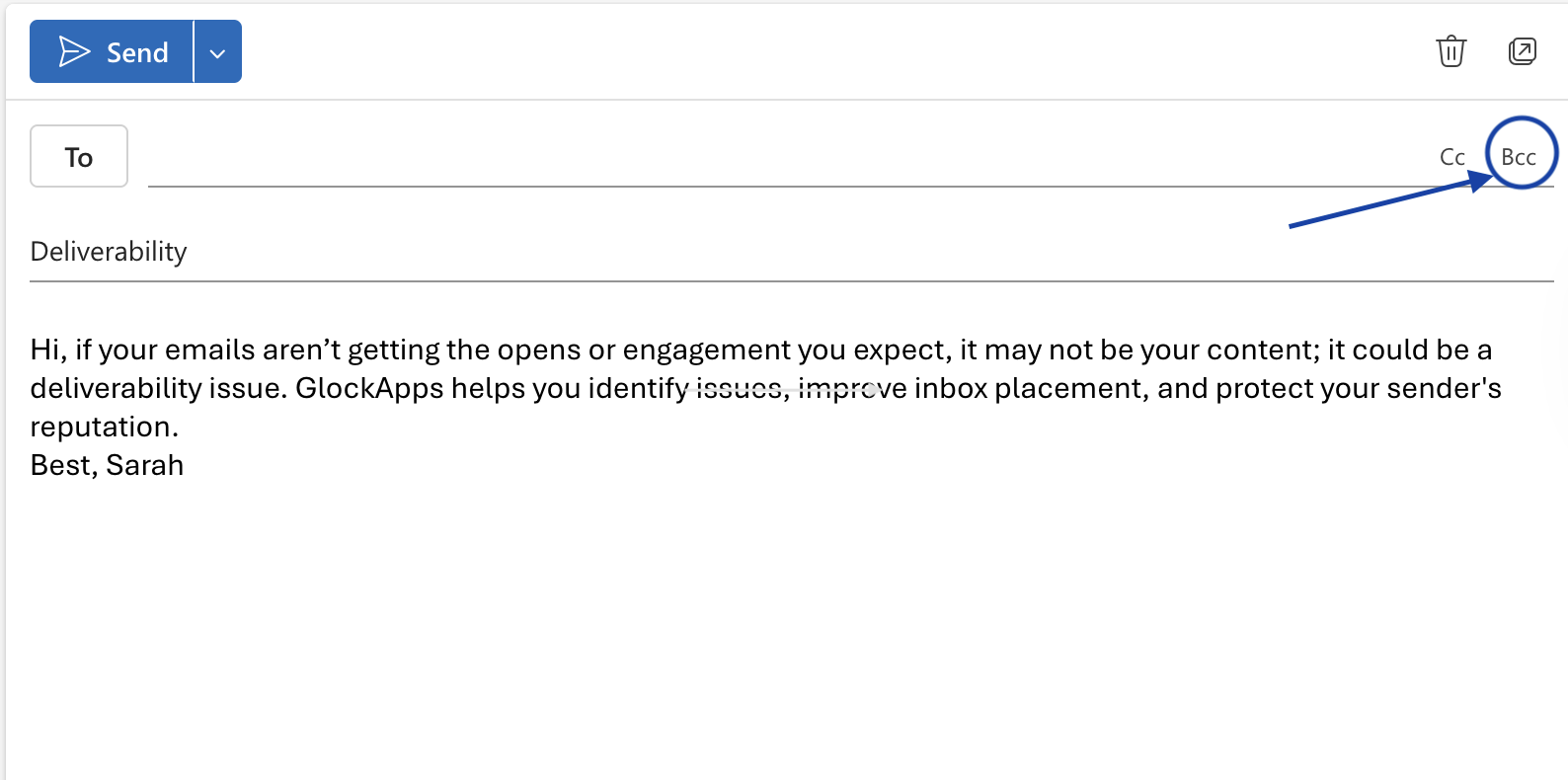
- Add recipients to the BCC field
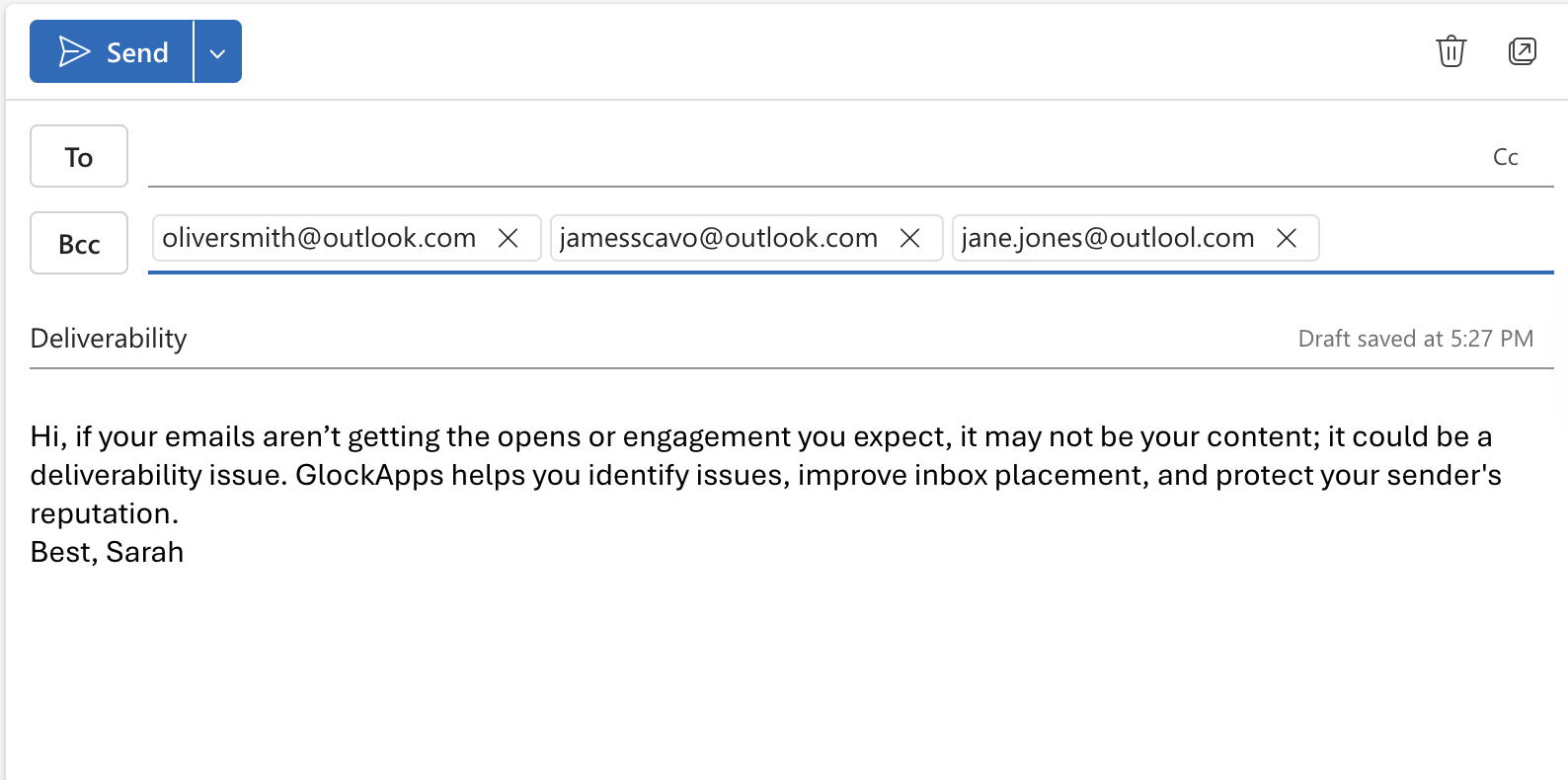
- Write your message
- Send
Why BCC matters:
If you place addresses in the To field, every recipient sees everyone else’s email. This is:
- Unprofessional
- A privacy violation
- Risky under data protection rules
Method 2: Mail Merge (Professional & Personalized)
As much as I like the BCC method, for more professional bulk communication, mail merge is the most effective approach. Unlike BCC, this method allows you to send individual, personalized emails where each recipient receives a separate message addressed specifically to them.
This option is particularly useful if you:
- Need personalization (names, companies, roles)
- Want recipients to receive separate emails
- Do not already have an Excel contact list
- Prefer to build your list directly in Word
Mail Merge for email requires Microsoft Word (desktop) and Outlook.
Step 1: Open Microsoft Word
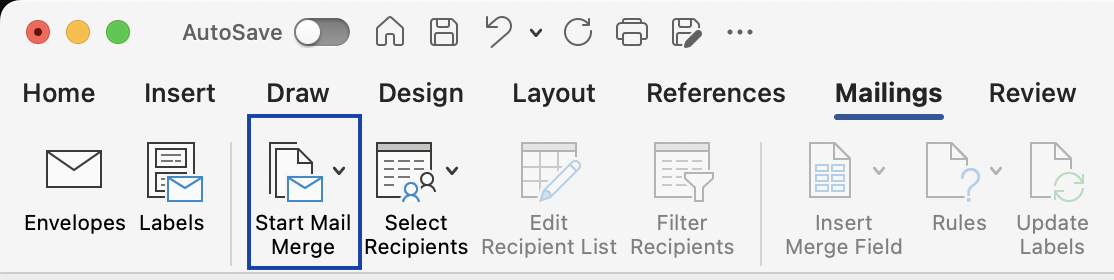
Launch the desktop version of Microsoft Word and navigate to the Mailings tab in the ribbon.
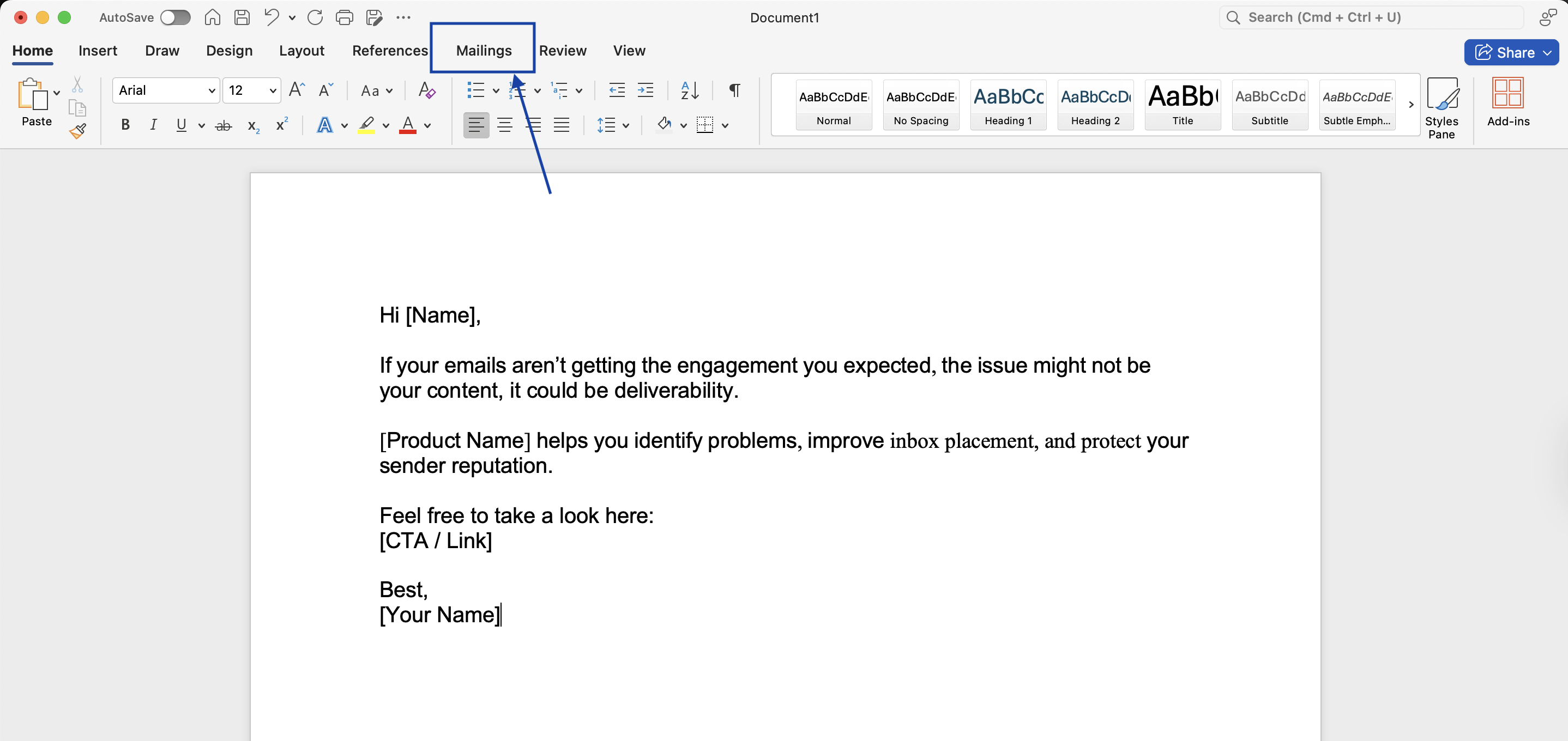
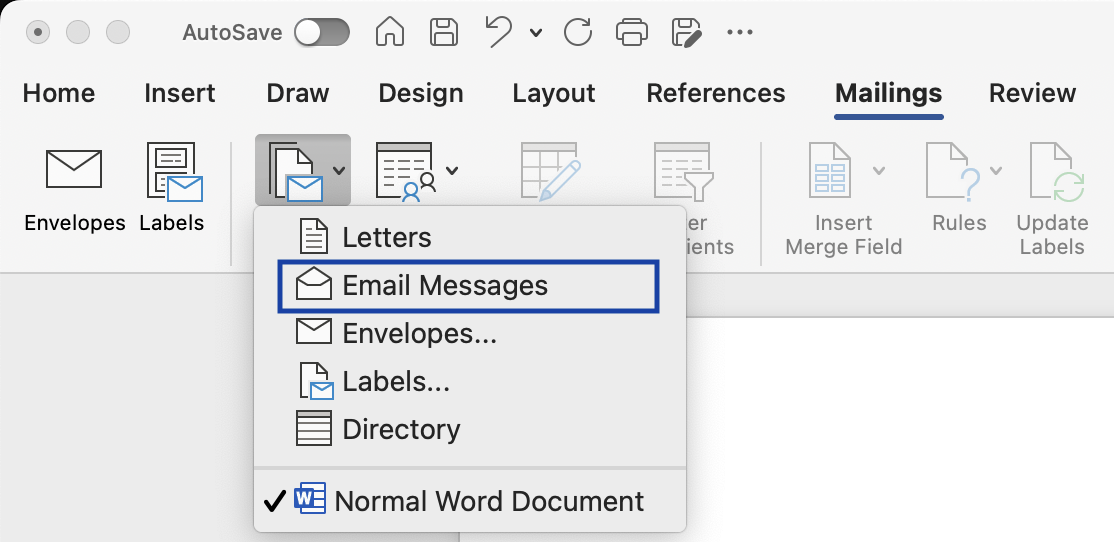
Step 2: Start the Mail Merge
Click:
Mailings → Start Mail Merge → Email Messages
This setting tells Word that you are preparing an email campaign rather than letters or labels.
Step 3: Create a New Recipient List
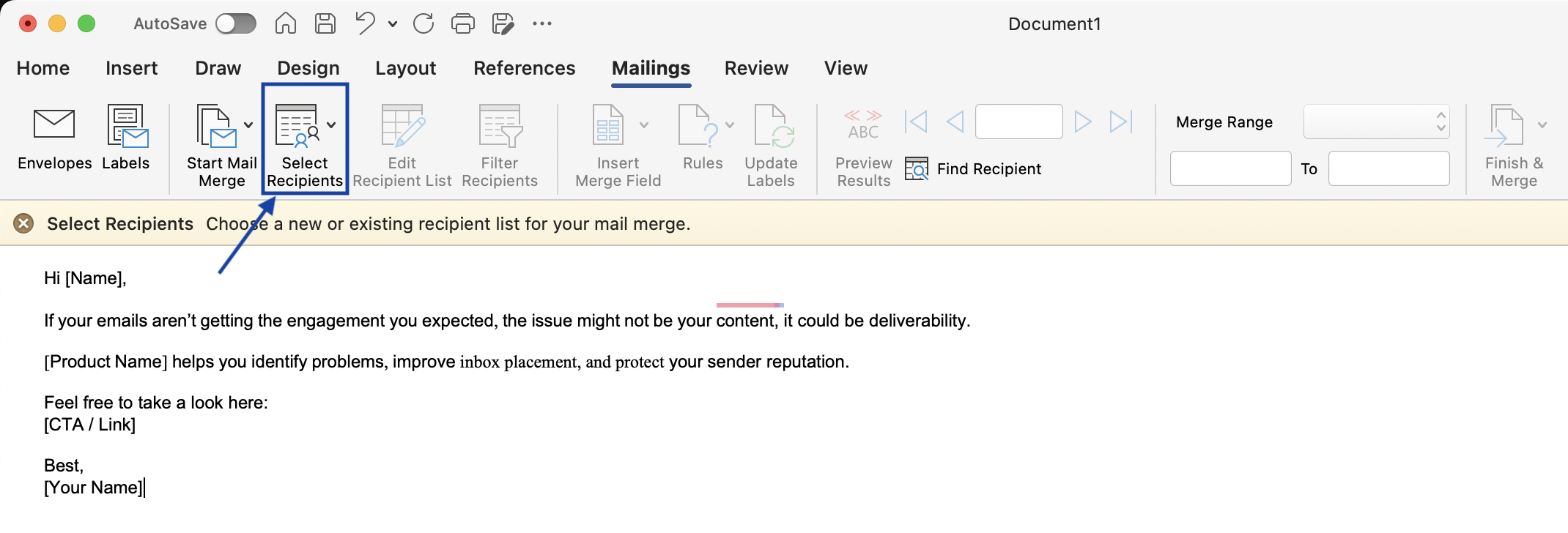
Select:
Select Recipients → Type a New List
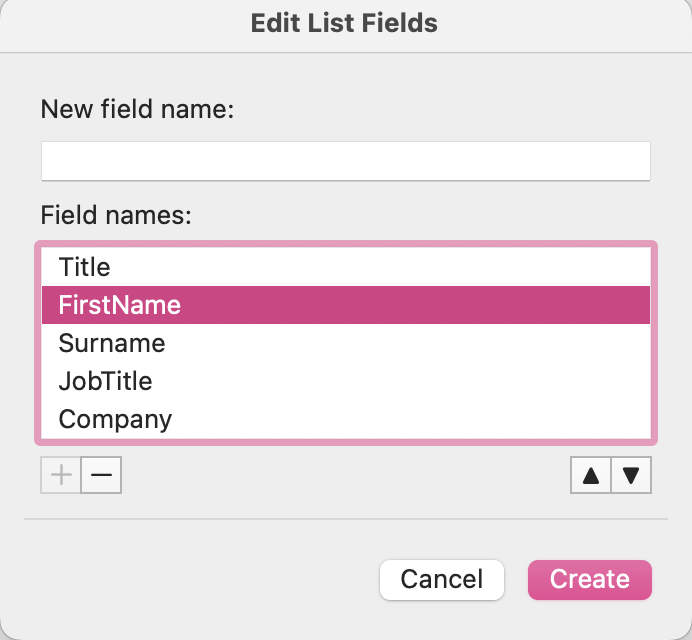
A dialog window titled Edit List Fields will appear. This functions as a built-in contact database.
Step 3: Write and Personalize the Email
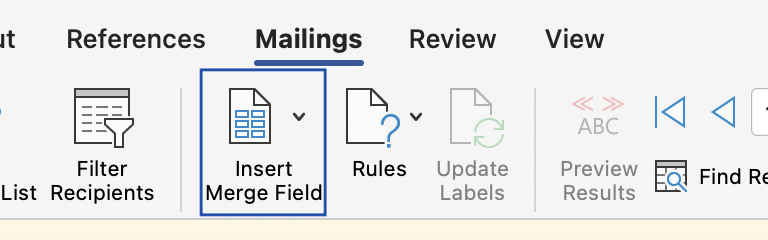
Compose your message in Word and insert merge fields. Use Insert Merge Field to add personalization.
Step 4: Send the Emails
Click:
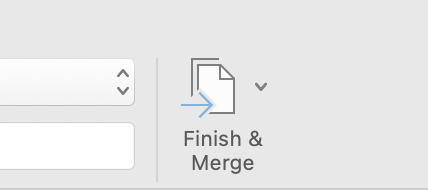
Finish & Merge → Send Email Messages
Set:
- To: Email
- Subject Line: Your subject
- Mail Format: HTML
Confirm to send via Outlook.
Key Reminders
- Outlook must be open
- Add the subject at the final step
- Test before sending
- Watch sending limits
Method 3: Contact Groups (For Internal Sends)
Steps:
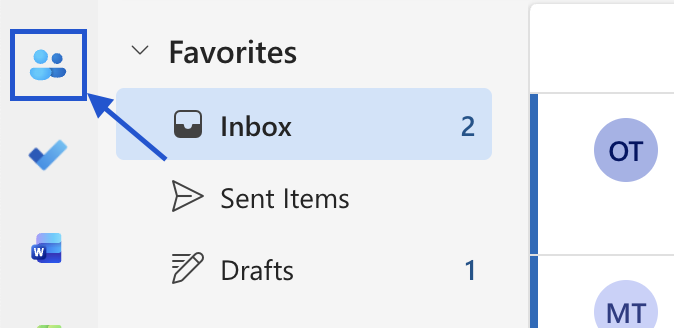
- Go to People / Contacts
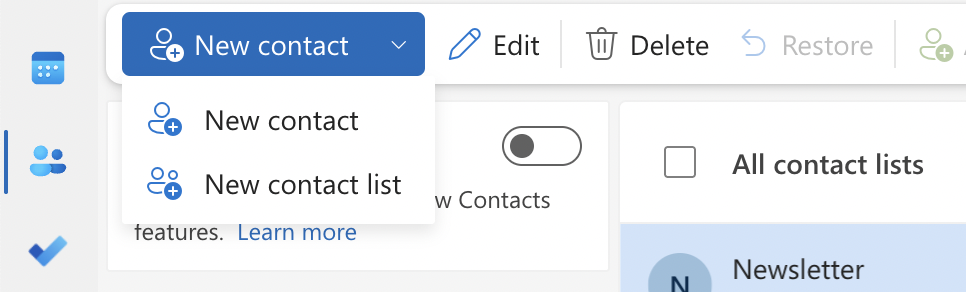
- Create New Contact List
- Add members
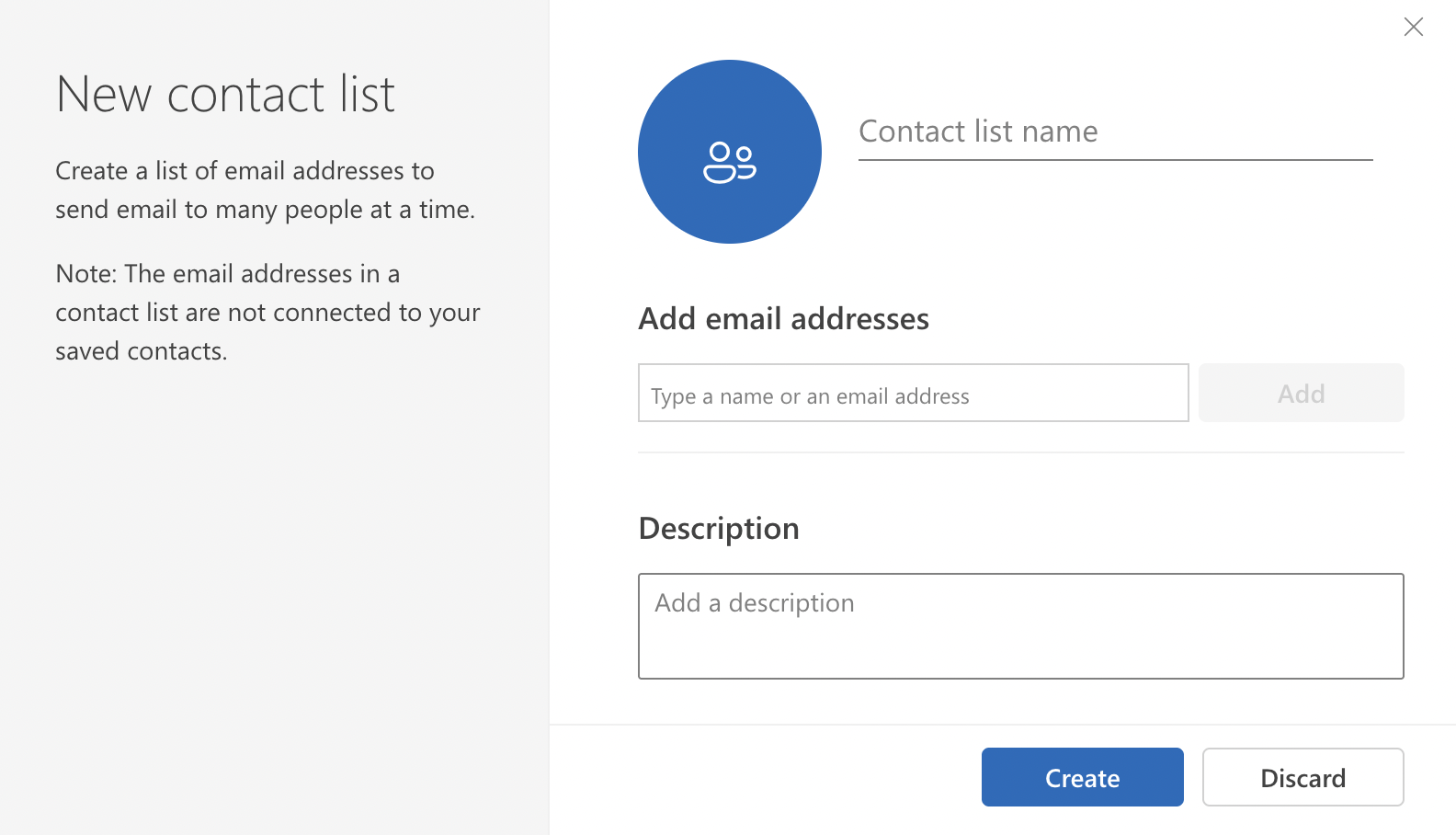
- Send an email to the group
Important: Still consider BCC if privacy is important.
Comparison of Outlook Mass Email Methods
When working with mass emails in Outlook, I rely on different methods depending on the situation. Here’s how they compare:
| Method | Best For | Personalization | Privacy | Complexity |
| BCC | Quick announcements | None | High | Easy |
| Mail Merge | Outreach & campaigns | Strong | High | Medium |
| Contact Groups | Internal communication | Very Limited | Depends | Easy |
Sending Limits in Outlook
One of the most overlooked issues in Outlook bulk email usage is sending restrictions.
Limits vary by:
- Outlook.com accounts
- Microsoft 365 accounts
- Exchange servers
Typical constraints include:
- Daily recipient caps
- Per-message recipient limits
- Rate throttling
Exceeding limits may trigger:
- Temporary blocks
- Delivery delays
- Spam filtering
Deliverability Considerations (Critical)
Sending a mass email in Outlook is easy. Getting it into the inbox is harder.
Common risks:
- Spam folder placement
- Low engagement signals
- Authentication failures
- Sender reputation damage
This is why you should monitor campaigns using tools like GlockApps, which help identify:
- Spam filter triggers
- Authentication problems
- Inbox placement issues
Outlook has one of the harshest spam filters, it’s extremely important to test deliverability if you’re using Outlook all the time for your campaigns or even for internal use. Without visibility, you’re sending blind.
How to Avoid Spam Issues
I have sent a lot of bulk emails using Outlook, and here is my list of best practices you can follow:
- Avoid spammy subject lines
- Personalize when possible
- Do not send to cold/unverified lists
- Authenticate your domain (SPF/DKIM/DMARC)
- Send gradually (avoid sudden spikes)
- Use tools like GlockApps to get essential insights into your inbox and prevent any issues with deliverability
When Outlook Is NOT the Right Tool
From my experience, Outlook is not ideal for:
- Recurring newsletters
- Automated sequences
- Behavioral campaigns
- Large-scale marketing
From my experience, one of the main problems with Outlook is that it tends to be particularly strict about HTML quality. One reason is the vast number of legacy and historical sending domains Microsoft has had to manage over the years. As a result, Outlook’s filtering systems are highly sensitive to structural inconsistencies, malformed tags, or even minor code issues.
I’ve seen cases where emails that rendered perfectly in other mailbox providers were flagged or filtered in Outlook simply because of small HTML imperfections.
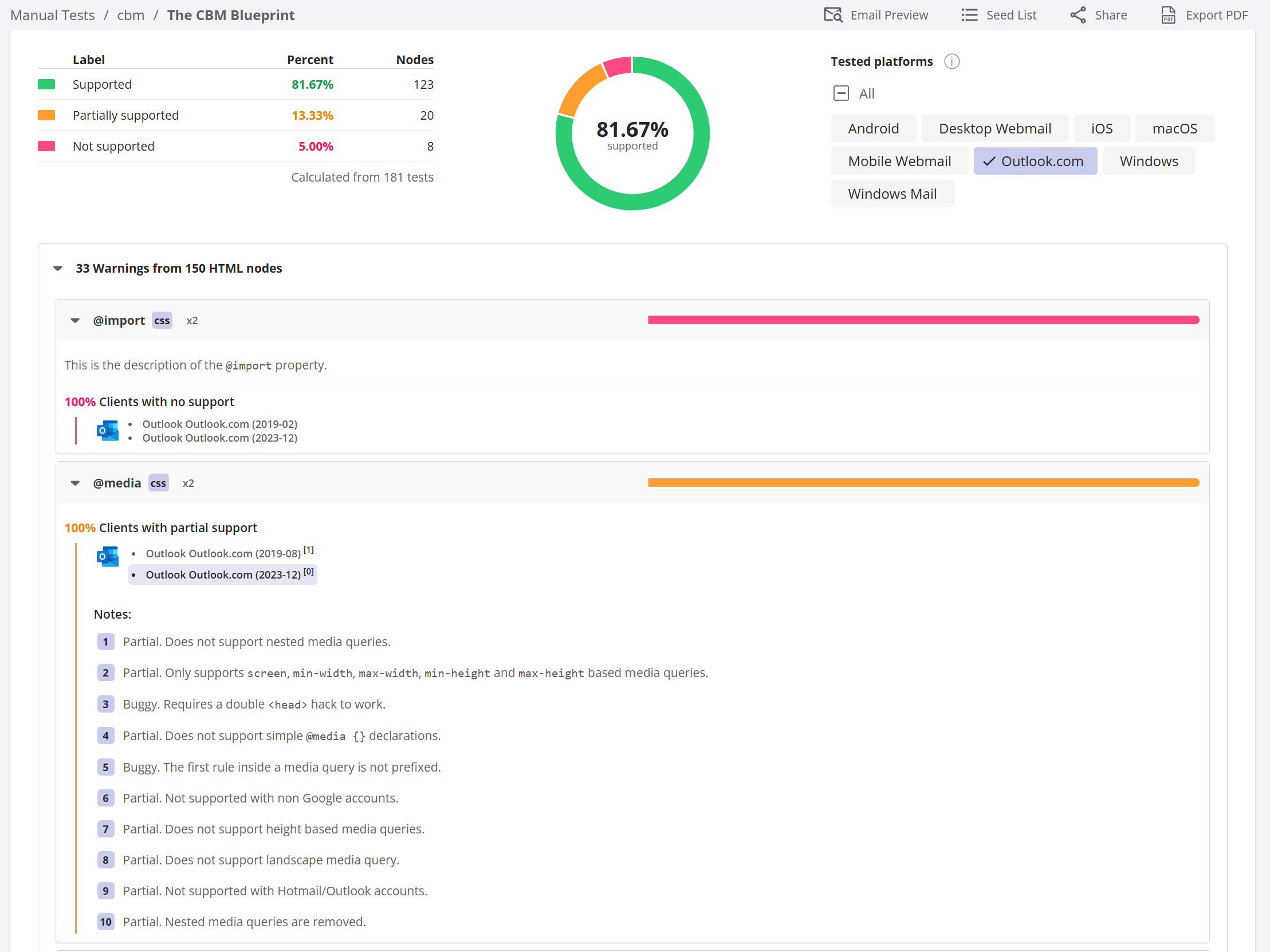
This is exactly why I recommend checking HTML before sending. Tools like GlockApps include an HTML Checker that quickly detects coding issues that may trigger filtering or spam placement.
It’s better to use dedicated platforms if you need:
- Analytics
- Unsubscribe management
- Templates
- A/B testing
- Compliance controls
Conclusion
Understanding how to mass email in Outlook is less about clicking “Send” and more about:
- Protecting recipient privacy
- Respecting sending limits
- Personalizing content
- Preserving deliverability
Outlook works well for small to medium bulk sends, internal updates, and personalized outreach via mail merge.
For serious campaigns? Pair Outlook with deliverability monitoring and strategy.
FAQ
Use the BCC field or mail merge.
Mail merge sends separate emails to each recipient.
Yes, but avoid large, unverified lists and follow deliverability best practices.
Related Posts

Efficient email communication hinges on reliable spam protection, and Microsoft Outlook’s built-in filters rank among the most widely used. Yet, Read more

Being able to send your emails from your email system to the inbox – instead of the junk folder – Read more
Every marketer knows that one of the most appealing aspects of email marketing campaigns is the ability to reach hundreds Read more

If you’ve ever asked yourself, “Why are my emails going to spam?”, you’re not alone. Email deliverability remains one of Read more