
HubSpot is an all‑in‑one growth platform that brings together marketing, sales, customer service, and CRM tools in a single, unified system. It enables email sending through its marketing email tools and transactional email capabilities, using HubSpot’s email delivery infrastructure and API-based sending methods.
If you want to test email deliverability through HubSpot using GlockApps, this tutorial will guide you step-by-step, from uploading your seed list to sending a test email and analyzing results. This is a crucial practice for marketers looking to ensure inbox placement and minimize spam folder issues.
1. Automated GlockApps Integration with HubSpot
With GlockApps, you can have a direct HubSpot integration that makes it possible to run deliverability tests using your existing HubSpot Marketing Emails without manually creating and uploading a GlockApps seed list.
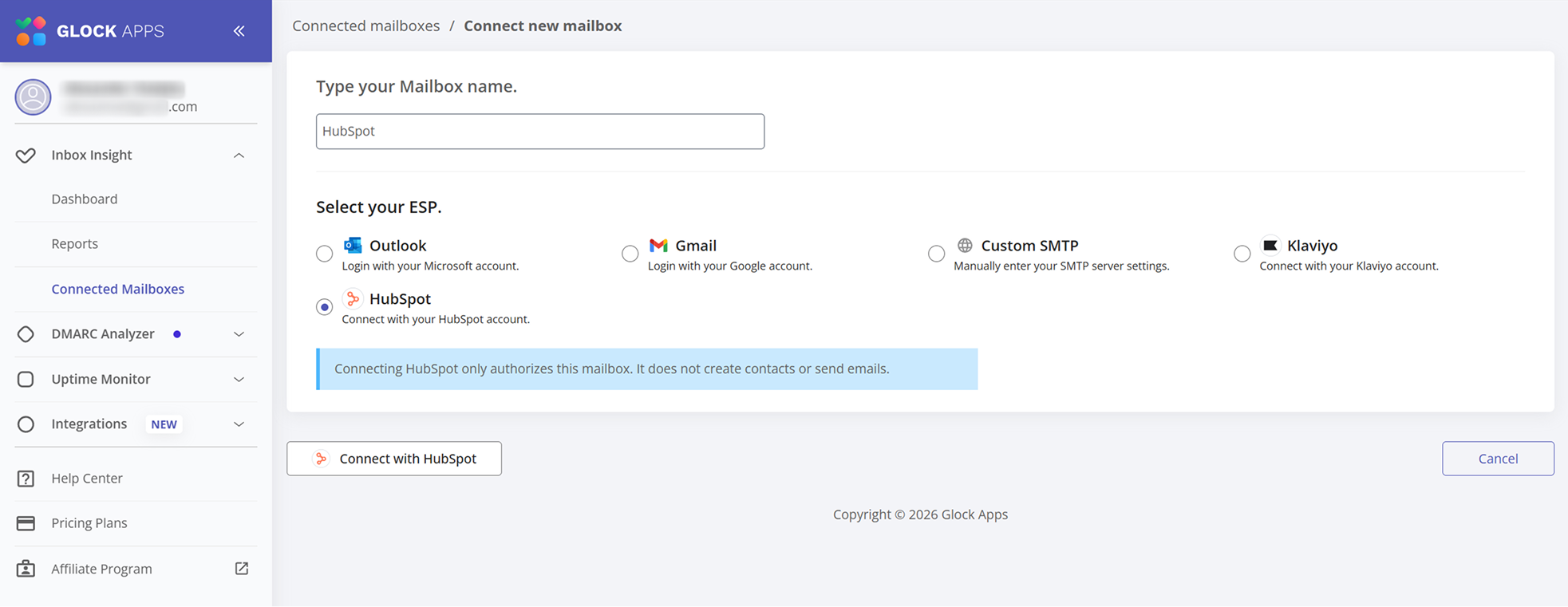
To connect your HubSpot account, go to Connected Mailboxes in GlockApps and click “Connect New Mailbox“.
Enter a name for the account — it can be any name that helps you recognize the connected mailbox on the list.
Select HubSpot from the available ESP options and click “Connect with HubSpot”.
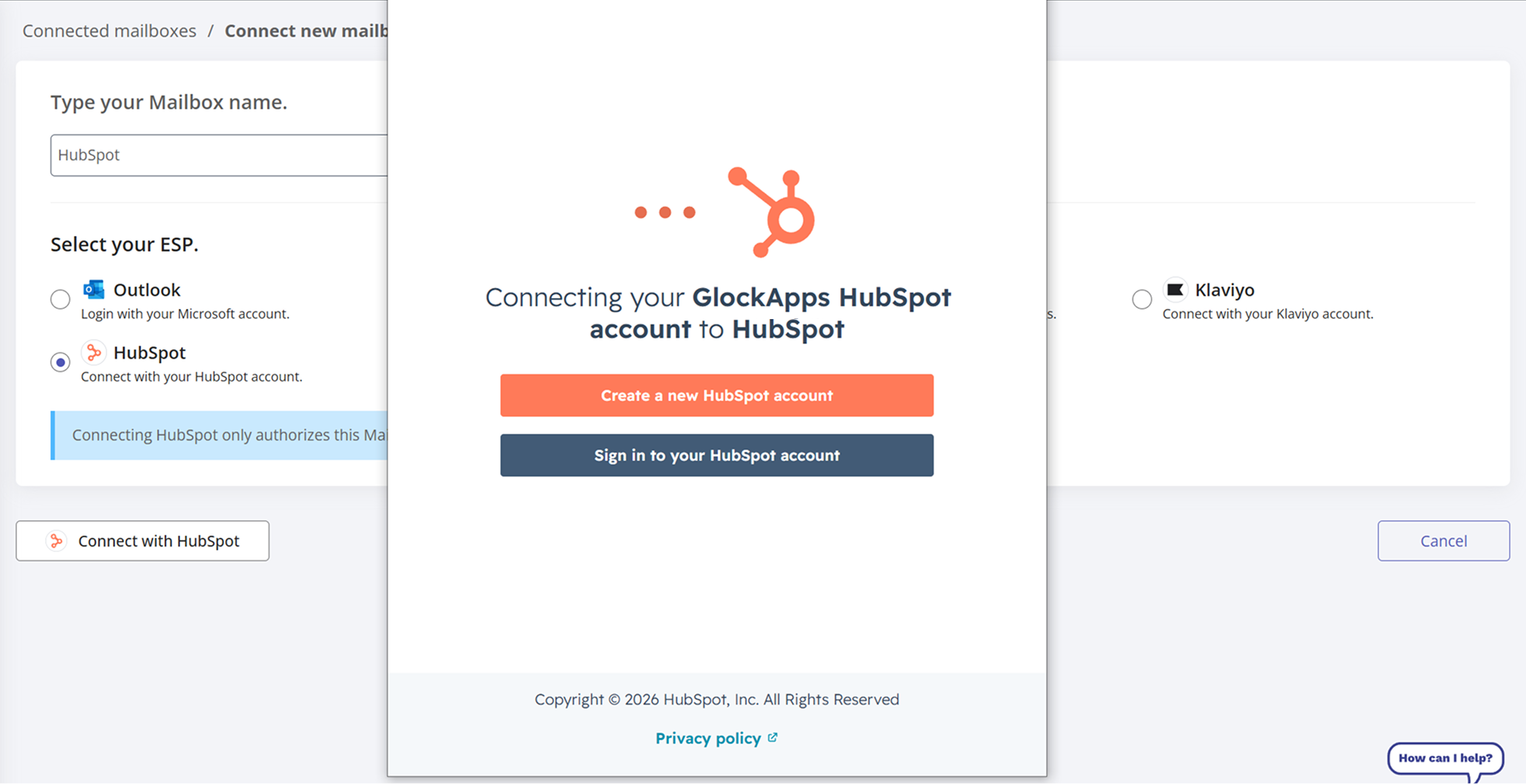
A HubSpot authorization window will open. Sign in to the HubSpot account you want to connect.
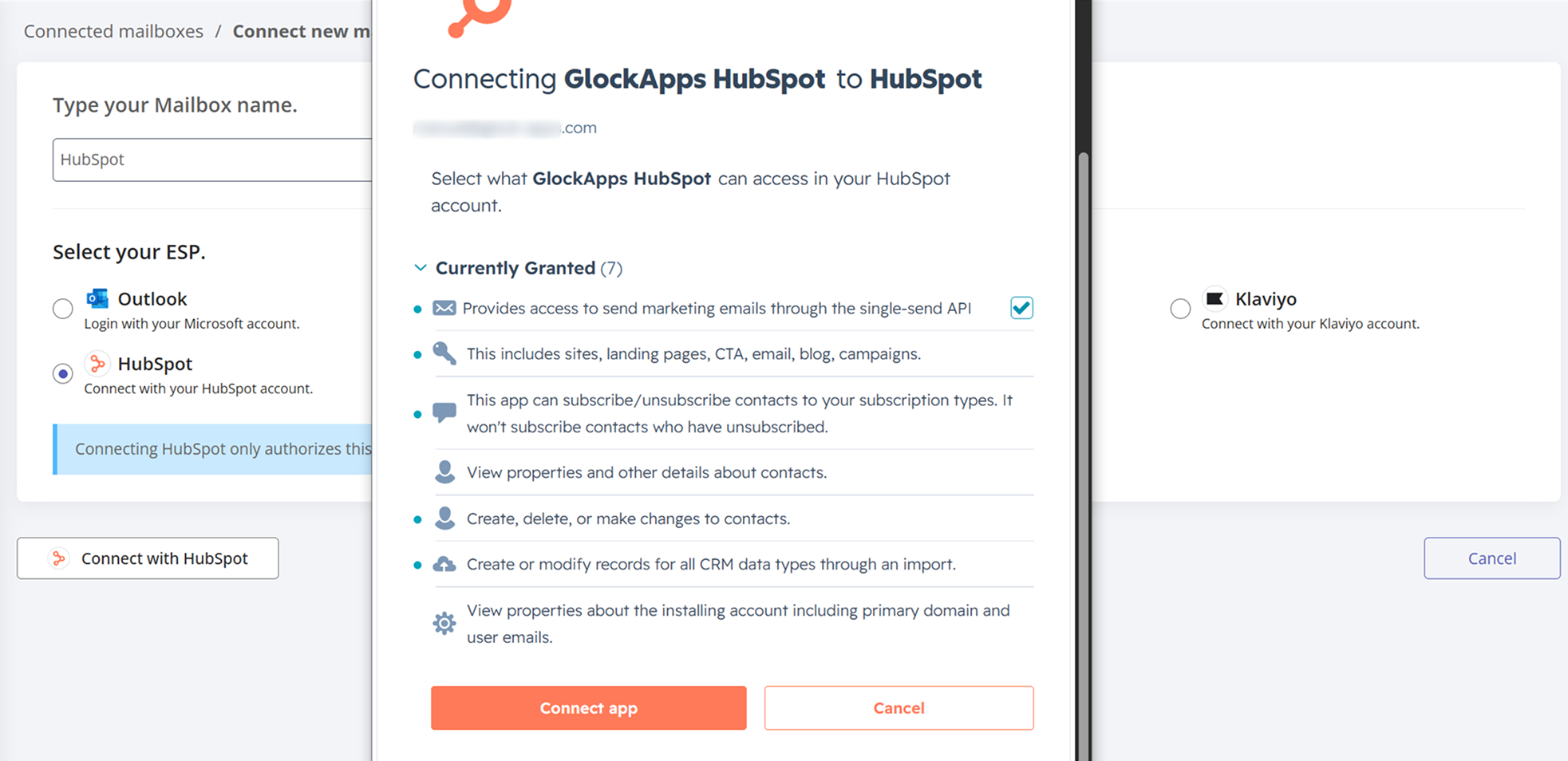
Next, review the permissions requested by GlockApps and click “Connect app” to authorize the integration.
Once the account is connected, you can use HubSpot to run manual one-time tests or configure automatic recurring tests in GlockApps.
Please note that Smart Tests are not available for the HubSpot integration.
For more details, read this tutorial: How to Test the Deliverability of Your HubSpot Campaign Using GlockApps